This guide covers opening a picture, hiding details and saving your result. Labels show which parts need the extension and which also work in the online editor.
- Extension only
- Extension and online editor
- Online editor
Open a picture
Open an enlarged picture on a website Extension only
When a website shows an enlarged picture over the page, you see the Blur Picture icon in the picture’s top-left corner. The first time, a hint appears beside it: “Click this icon to blur parts of the image.” Click the icon to open the tools beside the picture. The picture stays on the website:
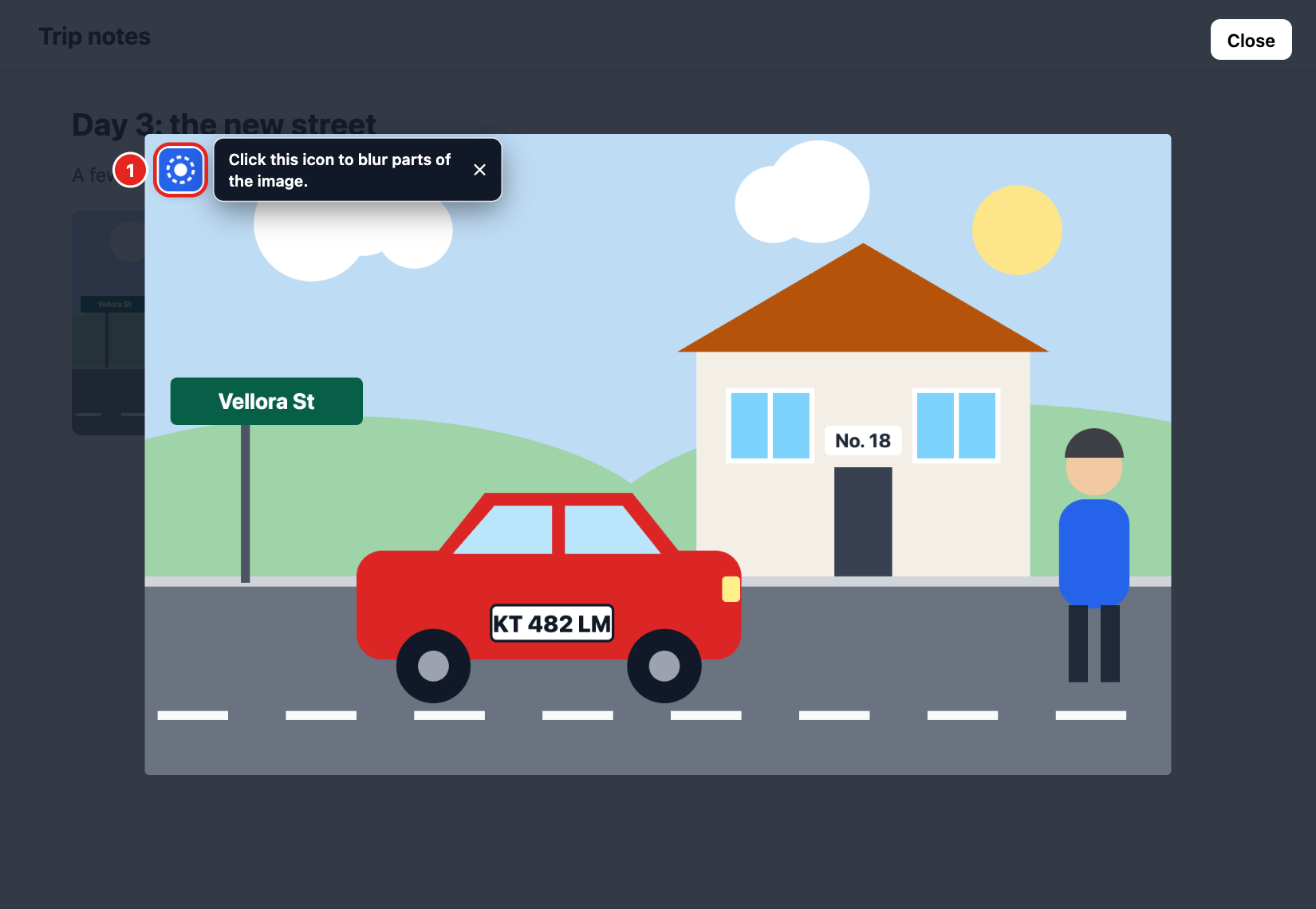
- 1 The Blur Picture icon with its one-time hint
The tools on the web page Extension only
The tools open in a column next to the picture:
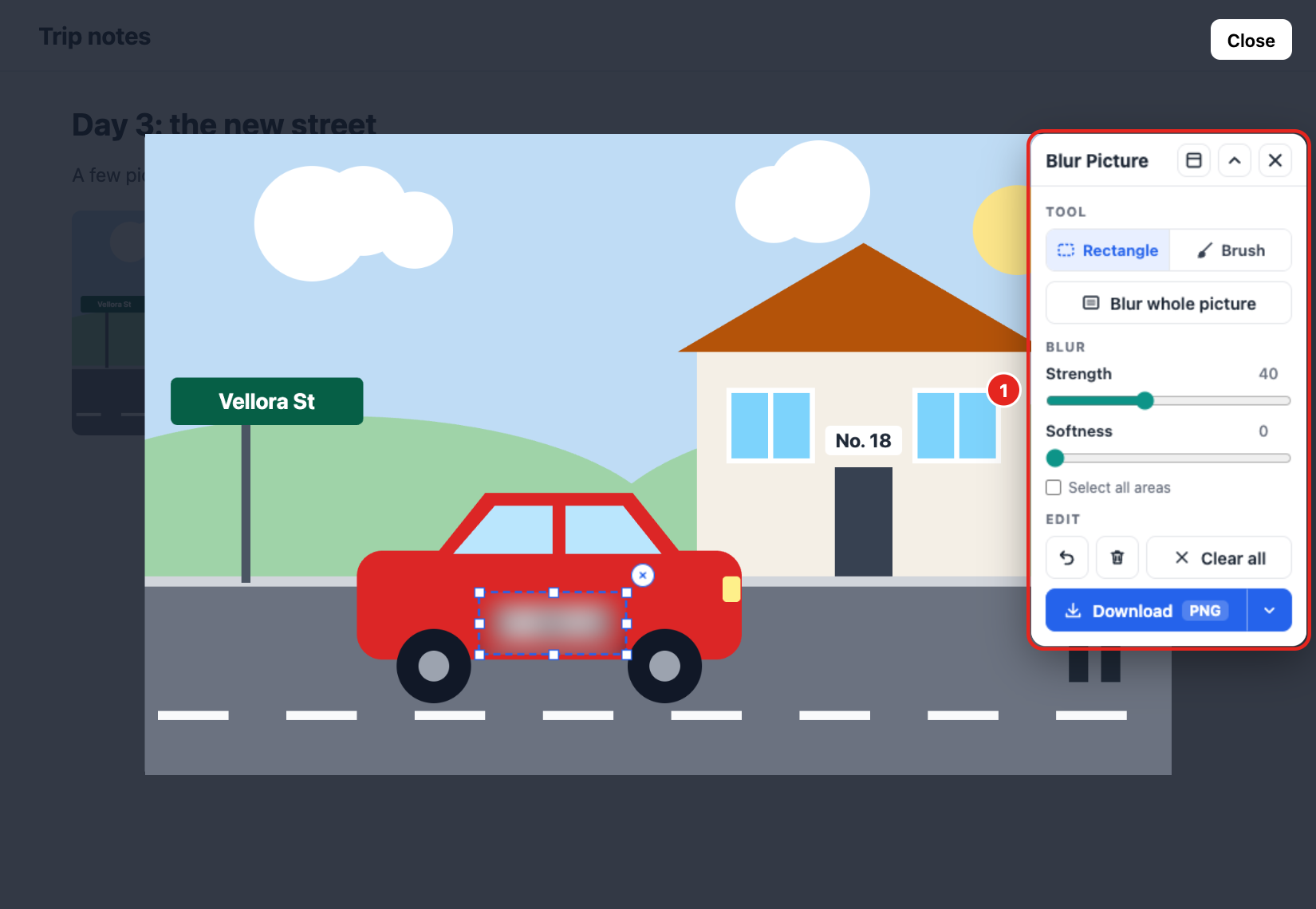
- 1 The tools, next to the picture on the website
In the header of the tools, the layout button switches between a column and a bar, the arrow folds the tools away or opens them again, and the cross closes them. Drag the header to move the tools anywhere; the position is remembered:
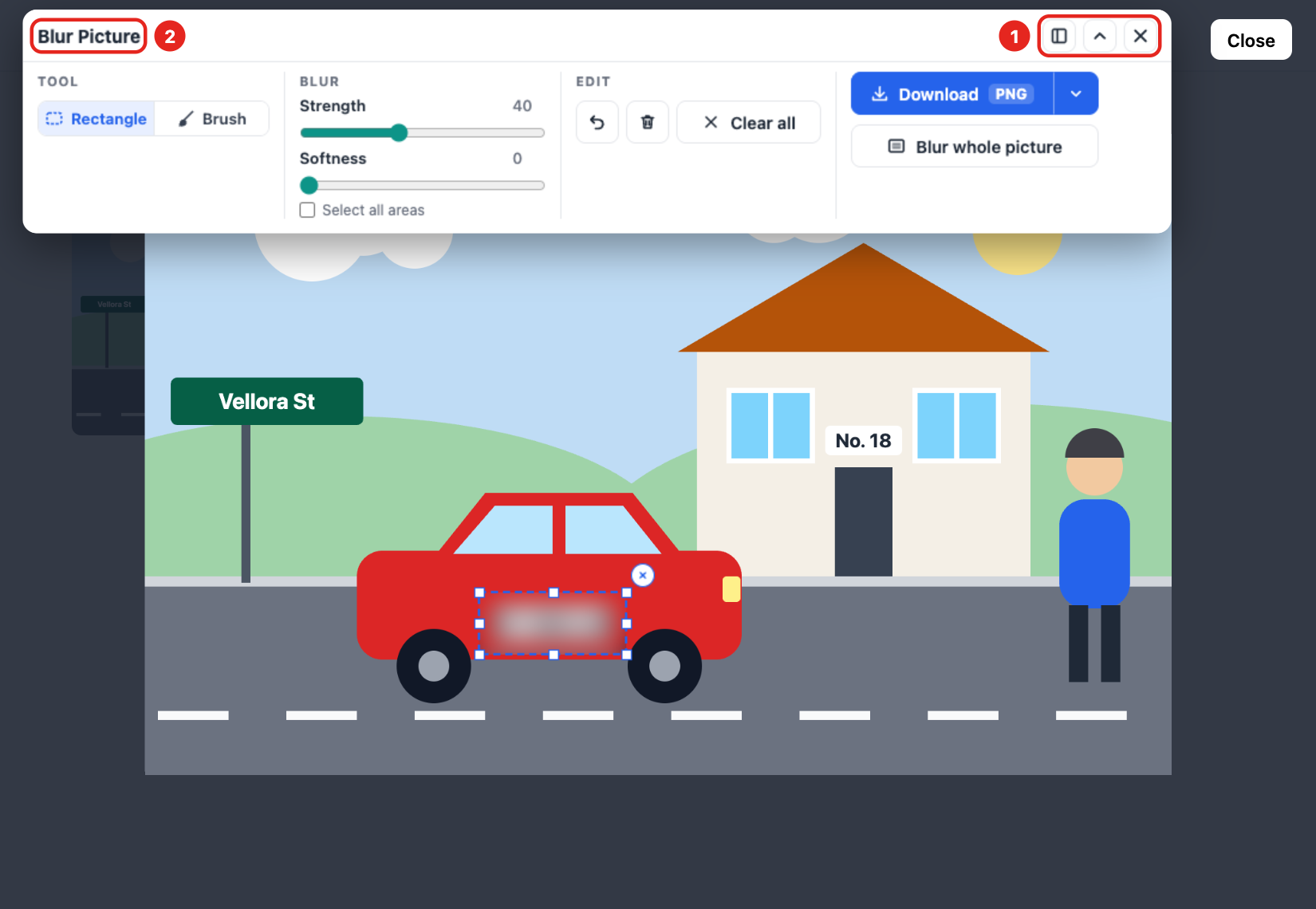
- 1 Layout, fold (arrow) and close (cross)
- 2 The header: drag it to move the tools
The on-page tools have no Zoom or “Upload image”; the extension’s editor tab has both. If the website closes the picture, the tools say “The website closed the picture. You can still download the result.”
Use the right-click menu Extension only
Right-click a picture on a website and choose “Blur Picture”. It opens in a new editor tab next to the current one:
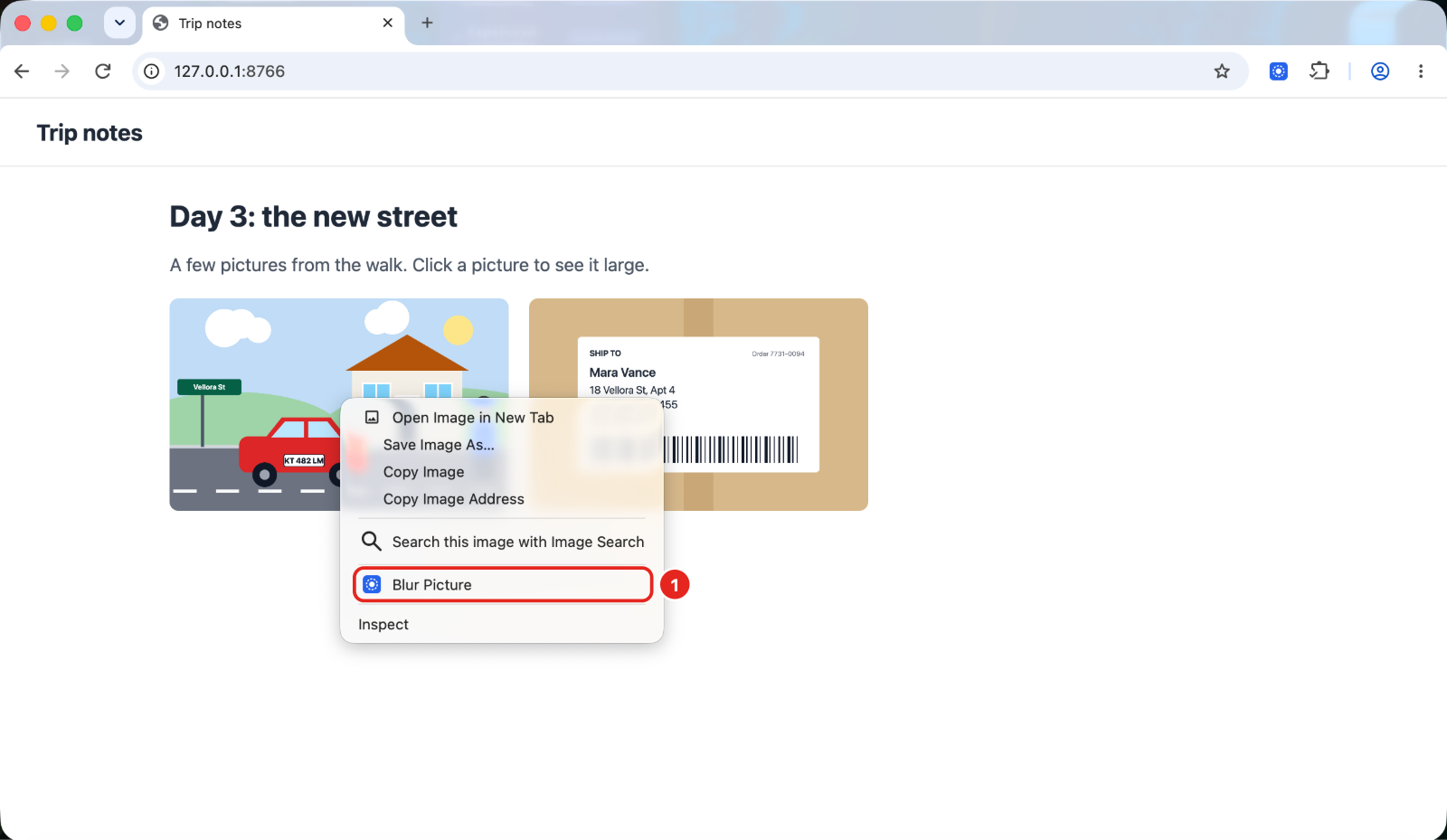
- 1 “Blur Picture” in the right-click menu
Open from the Chrome toolbar Extension only
Click the Blur Picture button on the Chrome toolbar to open an empty editor tab, then click “Upload image” and choose a file from your computer:
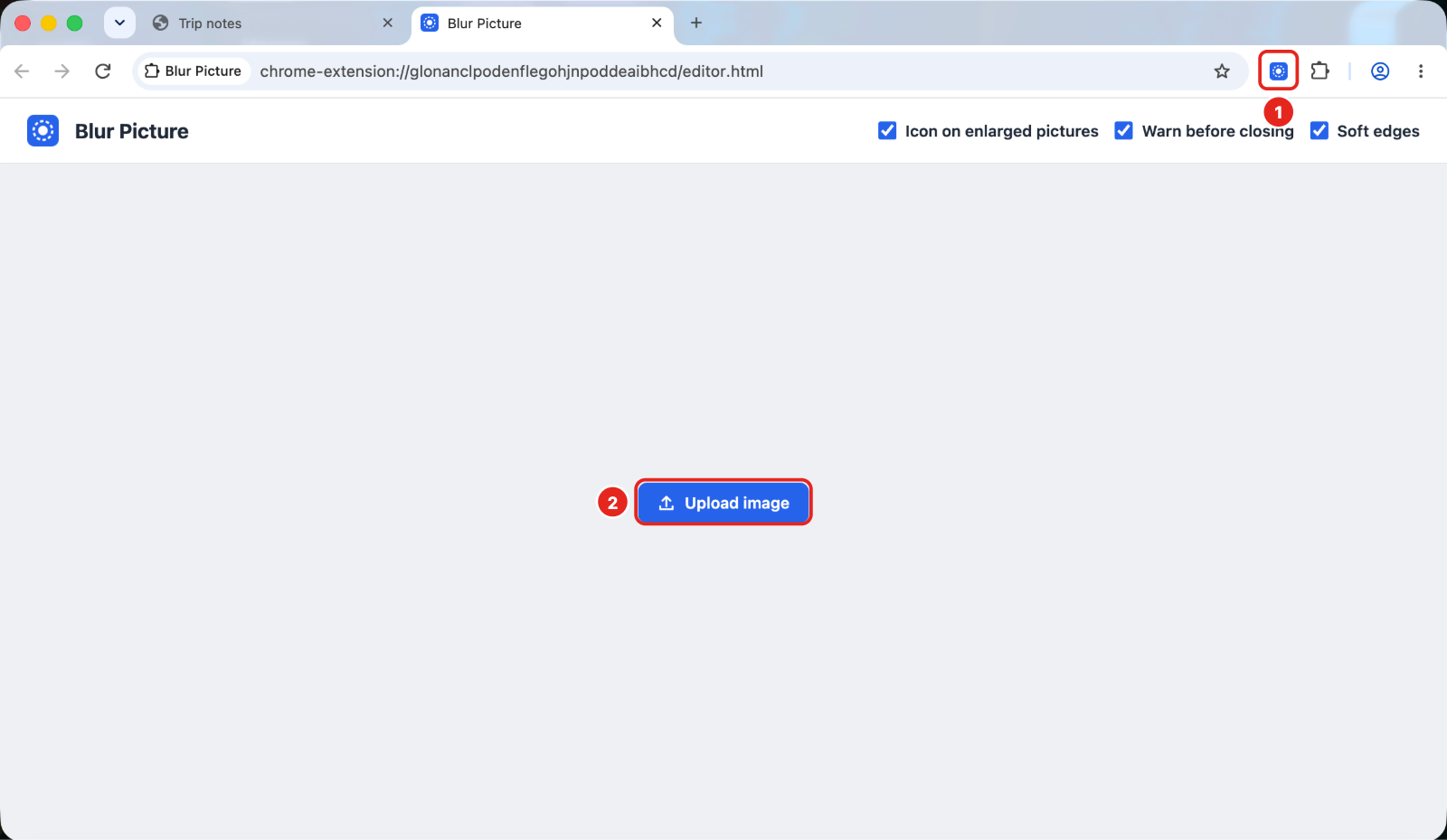
- 1 The Blur Picture button
- 2 “Upload image”
Pin the extension Extension only
To keep the button on the toolbar, click Chrome’s Extensions (puzzle) icon, then the three dots next to Blur Picture, then “Pin to Toolbar”:
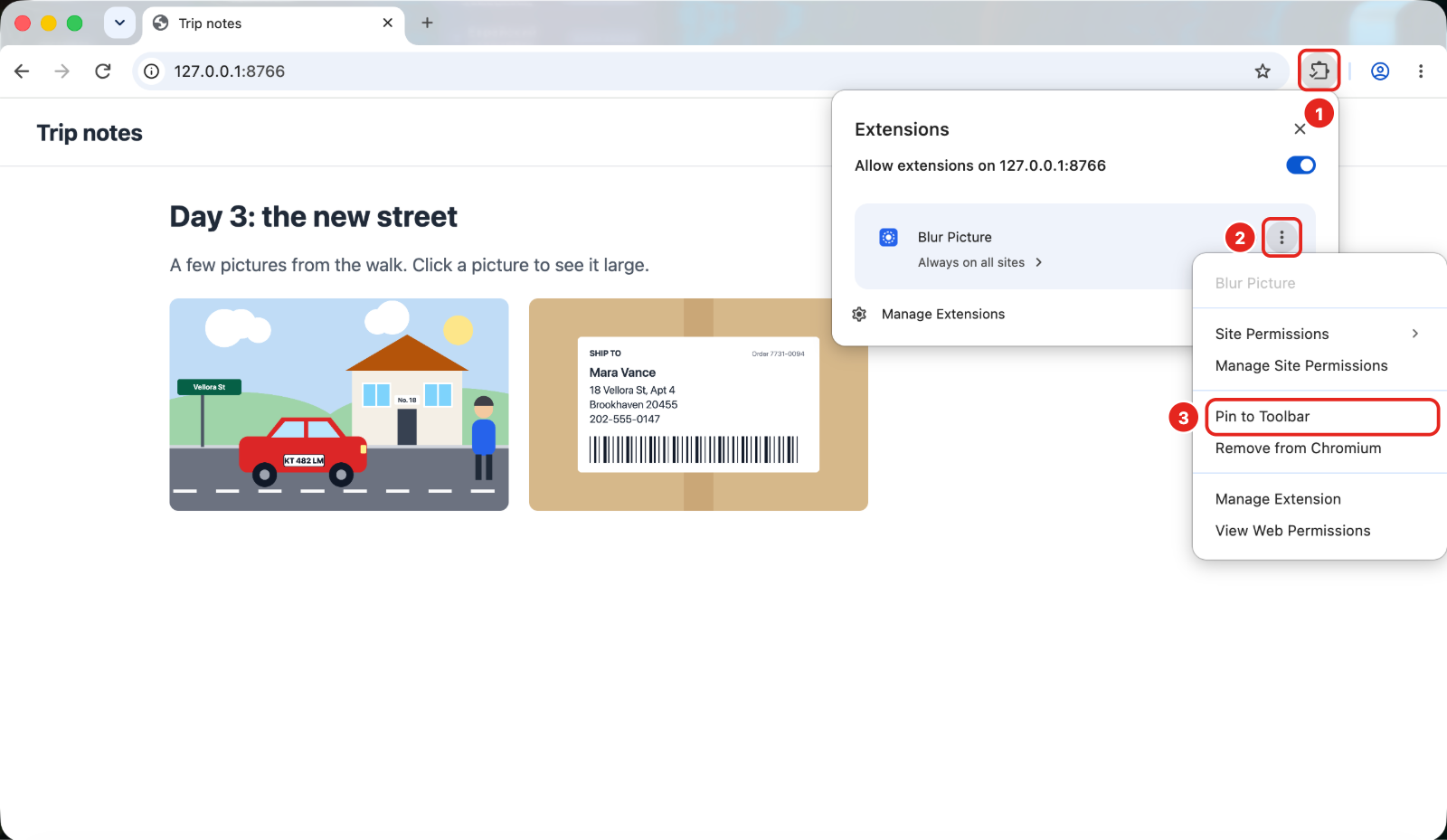
- 1 Extensions (puzzle) icon
- 2 Three dots next to Blur Picture
- 3 “Pin to Toolbar”
Use the online editor Online editor
On blur-picture.com, click “Upload image”, drop a picture file onto the editor, or paste a copied picture with Ctrl+V or Cmd+V. A sample picture with one area already blurred appears first, so you can try the tools. Your picture is processed in the browser and is not uploaded:
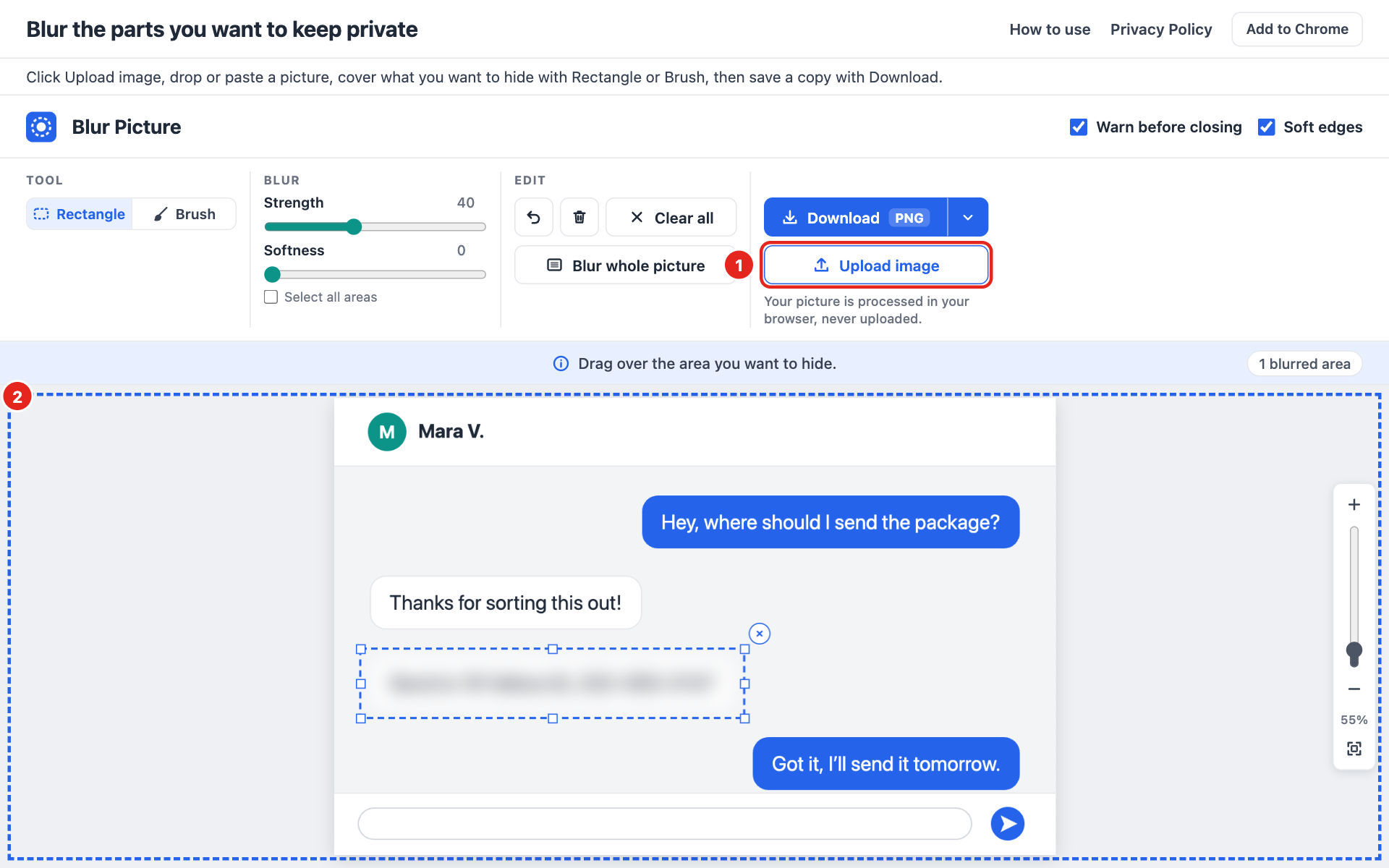
- 1 “Upload image”
- 2 A dashed frame shows while you drag a file over the editor
Supported file types Extension and online editor
You can open JPG, PNG, WebP and SVG files.
Mark what to hide
Extension and online editor
Draw a rectangle
“Rectangle” is selected by default. Drag across what you want to hide. Only the area inside the frame is blurred, which suits a single line of text.
Select and move an area
Choose “Rectangle”, then click an existing area, including a brush stroke, to select it. Drag the selected area to move it, or pull a rectangle’s handle to change its size. The round × button on the selected area deletes it. Press Esc or click a blank space to deselect it:
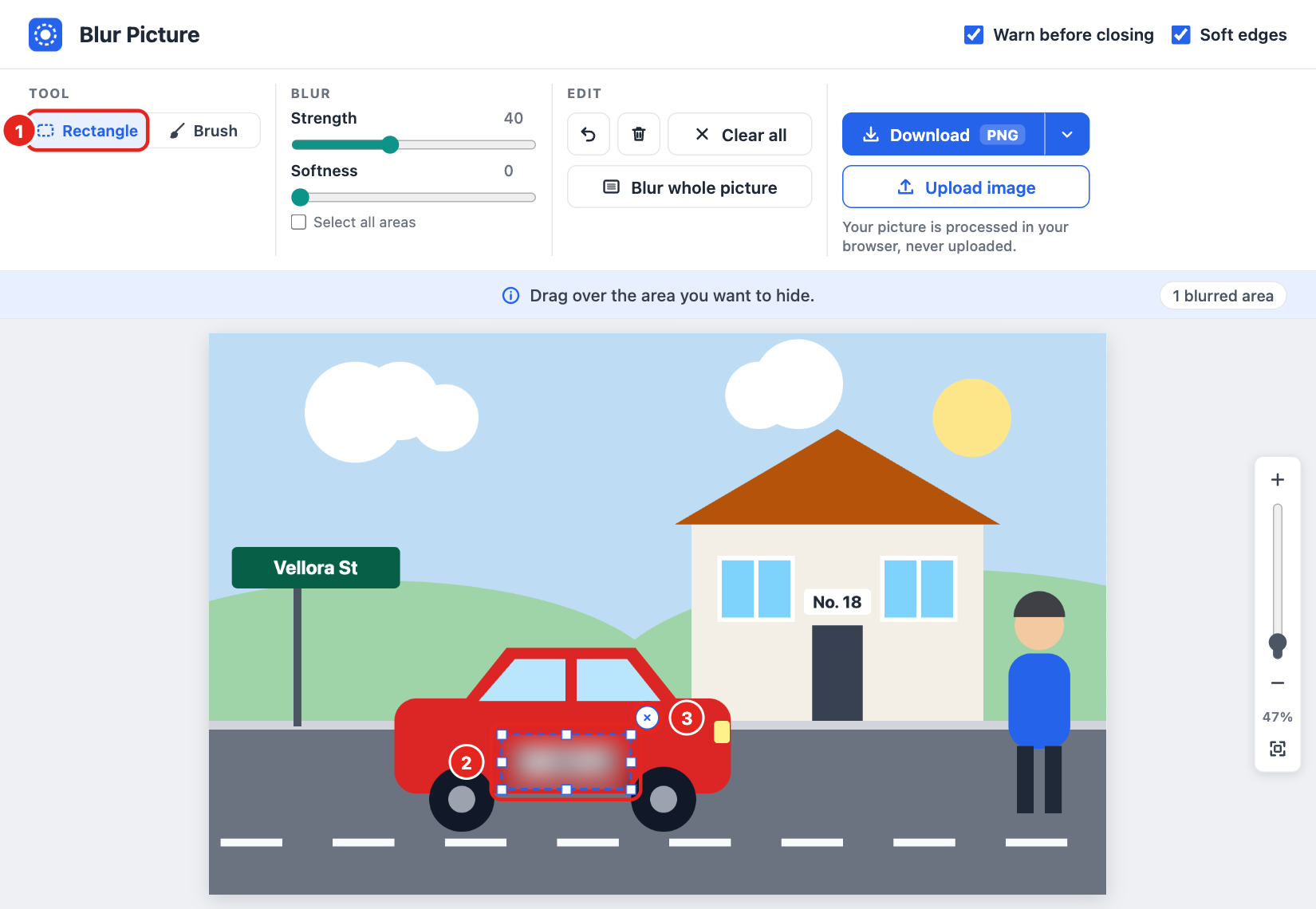
- 1 “Rectangle”
- 2 The selected area and its handles
- 3 The round × button: deletes the selected area
Paint with the brush
Select “Brush” to cover a detail by hand. Set the brush width from 5 to 150 with “Size”, or hold Alt and scroll with the mouse wheel or touchpad:
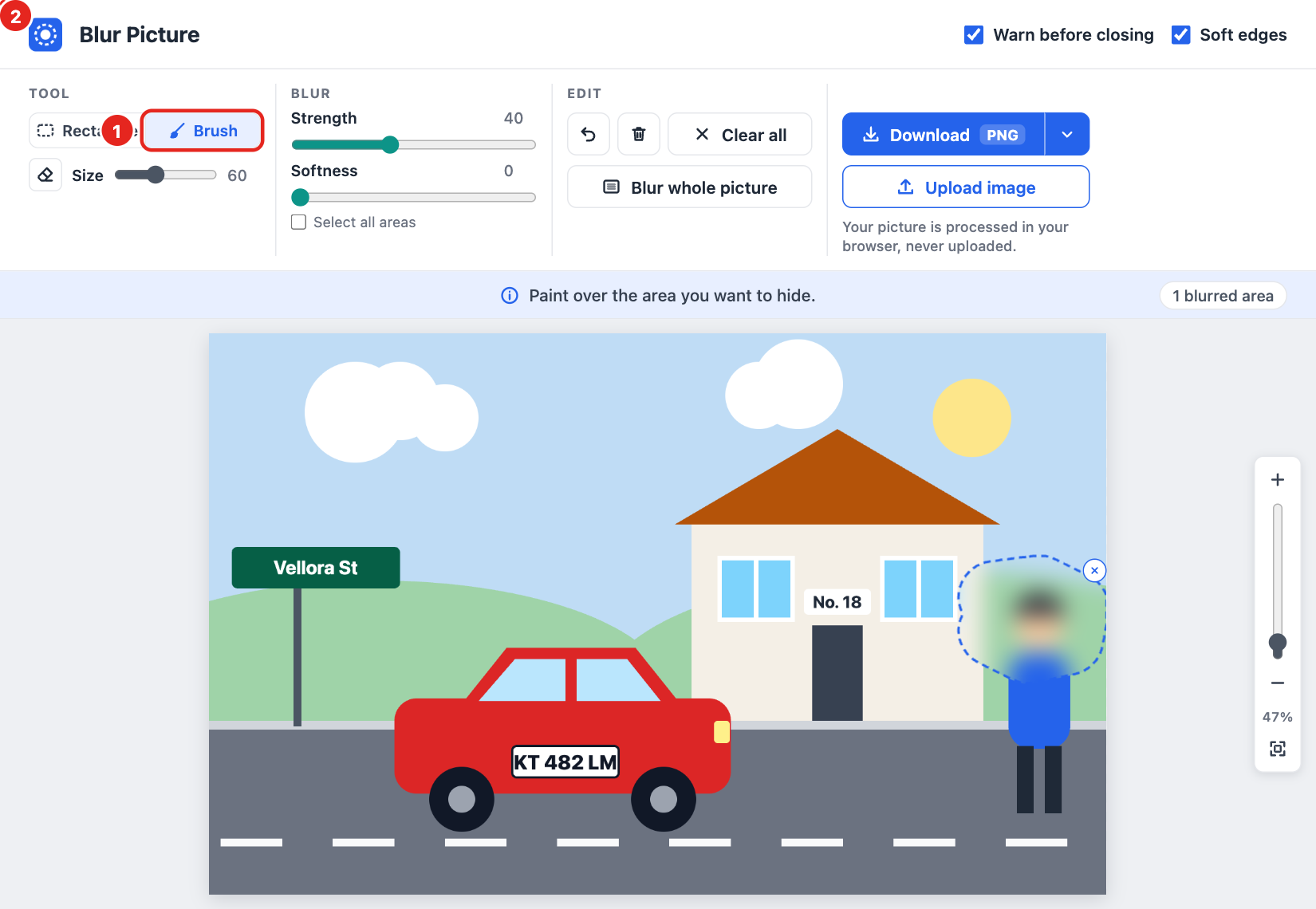
- 1 “Brush”
- 2 “Size”
Erase part of the blur
With “Brush” chosen, “Eraser” appears next to “Size”. Drag it over blur to make just that spot sharp again. “Eraser” is grey while “Blur whole picture” is on:
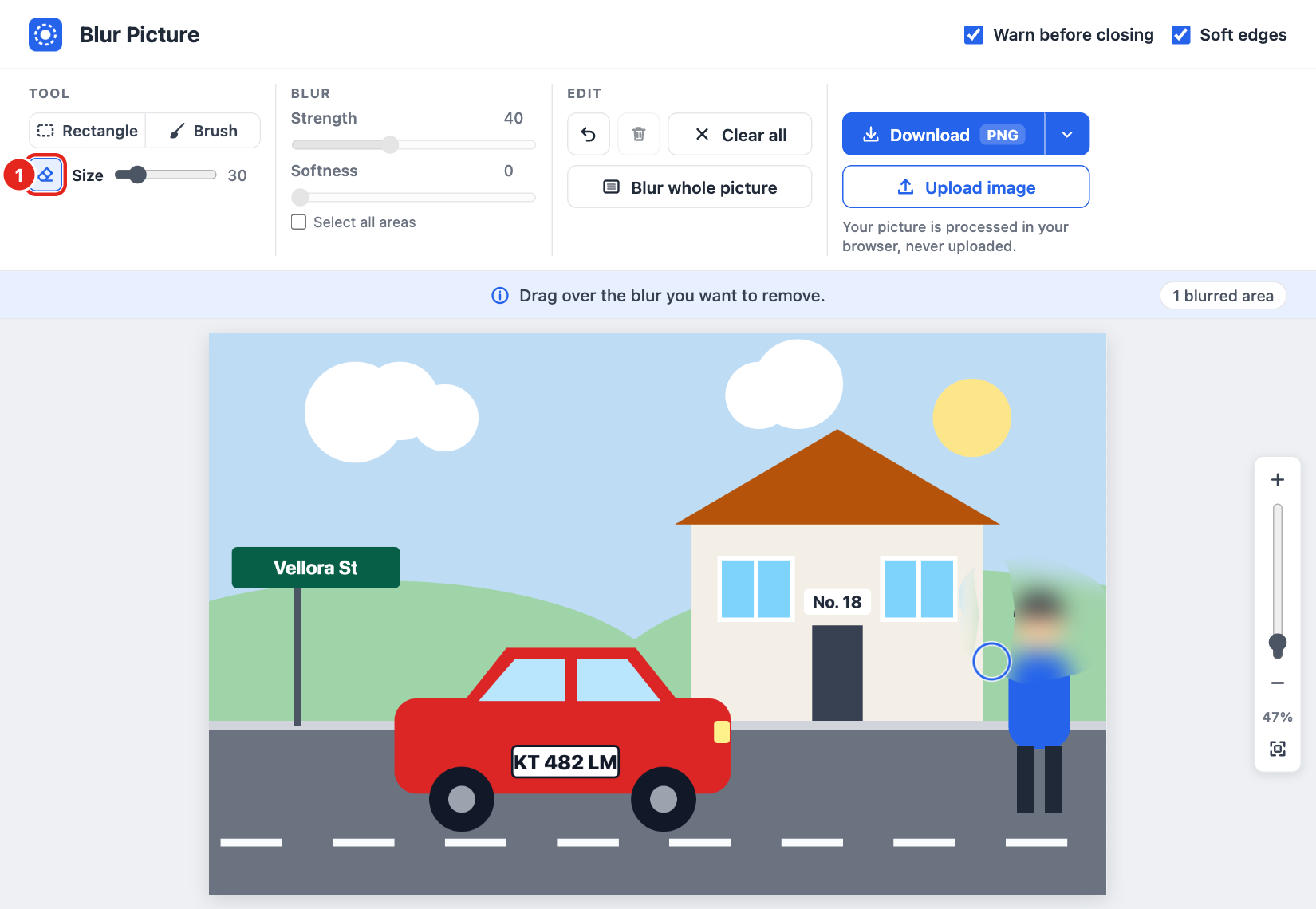
- 1 “Eraser”
Blur the whole picture
Click “Blur whole picture” to apply blur across the picture. Click it again to turn the effect off:
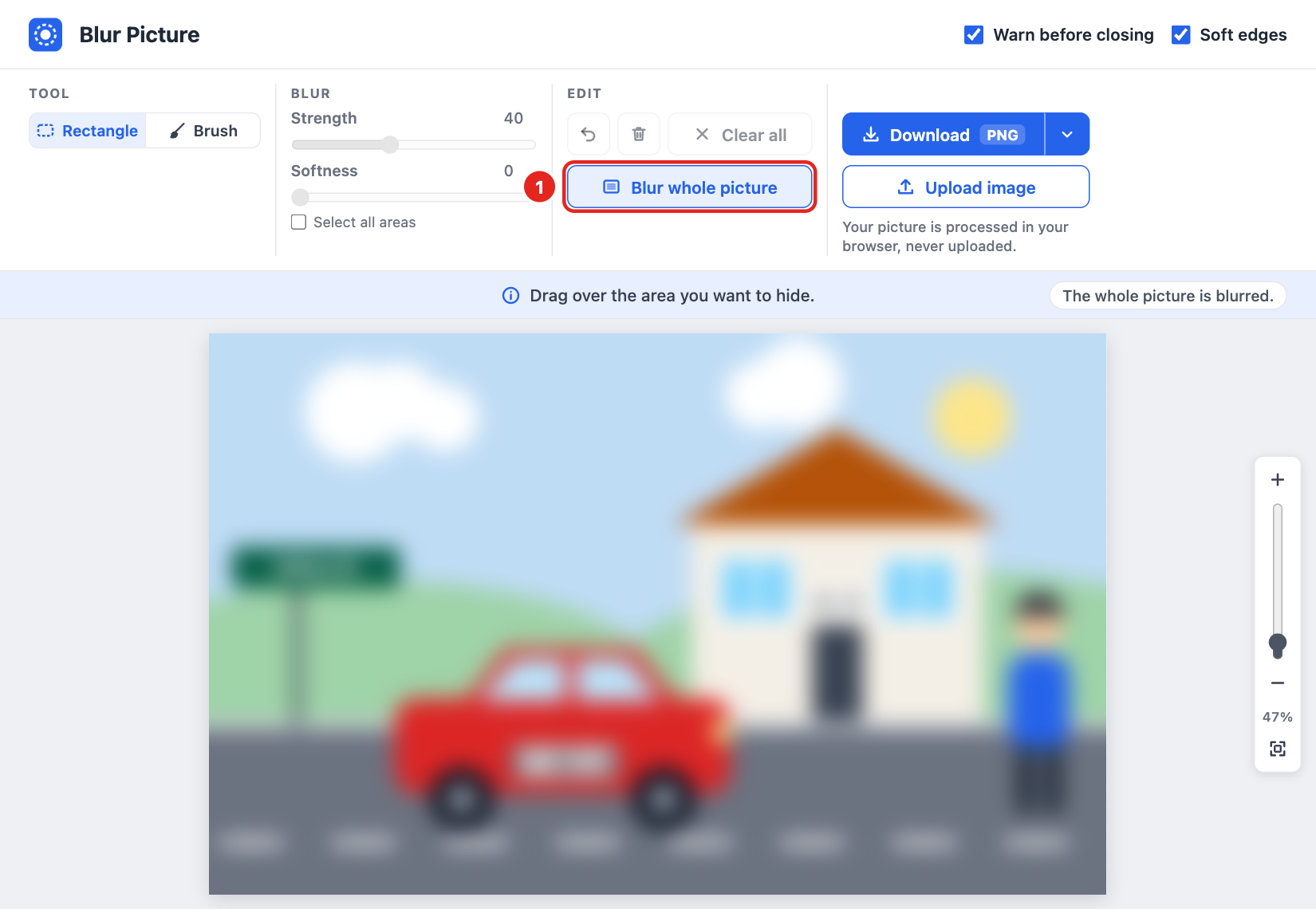
- 1 “Blur whole picture”
Check the area count
A line above the picture counts the blurred areas, for example “2 blurred areas” (see Adjust every area).
Adjust the blur
Extension and online editor
Set the strength
“Strength” sets the blur for the selected area from 1 to 100. Raise it until the text you want to hide cannot be read.
Soften the edges
“Softness” runs from 0 to 100 and makes the selected area’s edge soft instead of sharp. It is visible only while “Soft edges” is on. Make sure the soft edge does not reveal the detail:
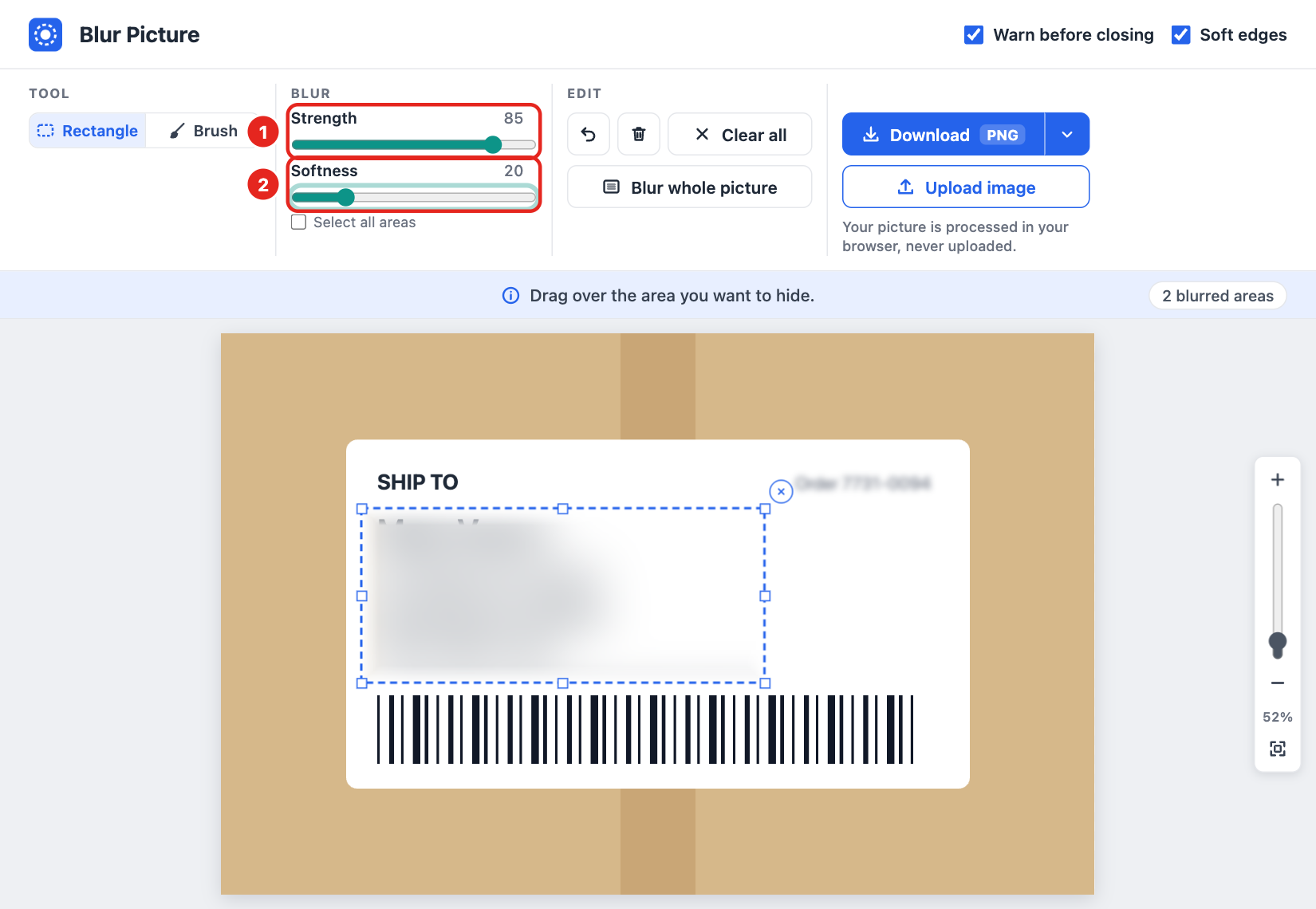
- 1 “Strength”
- 2 “Softness”
Adjust every area
Tick “Select all areas” to change “Strength” and “Softness” for every area at once. If no area is selected and this box is unticked, the editor asks you to click an area first:
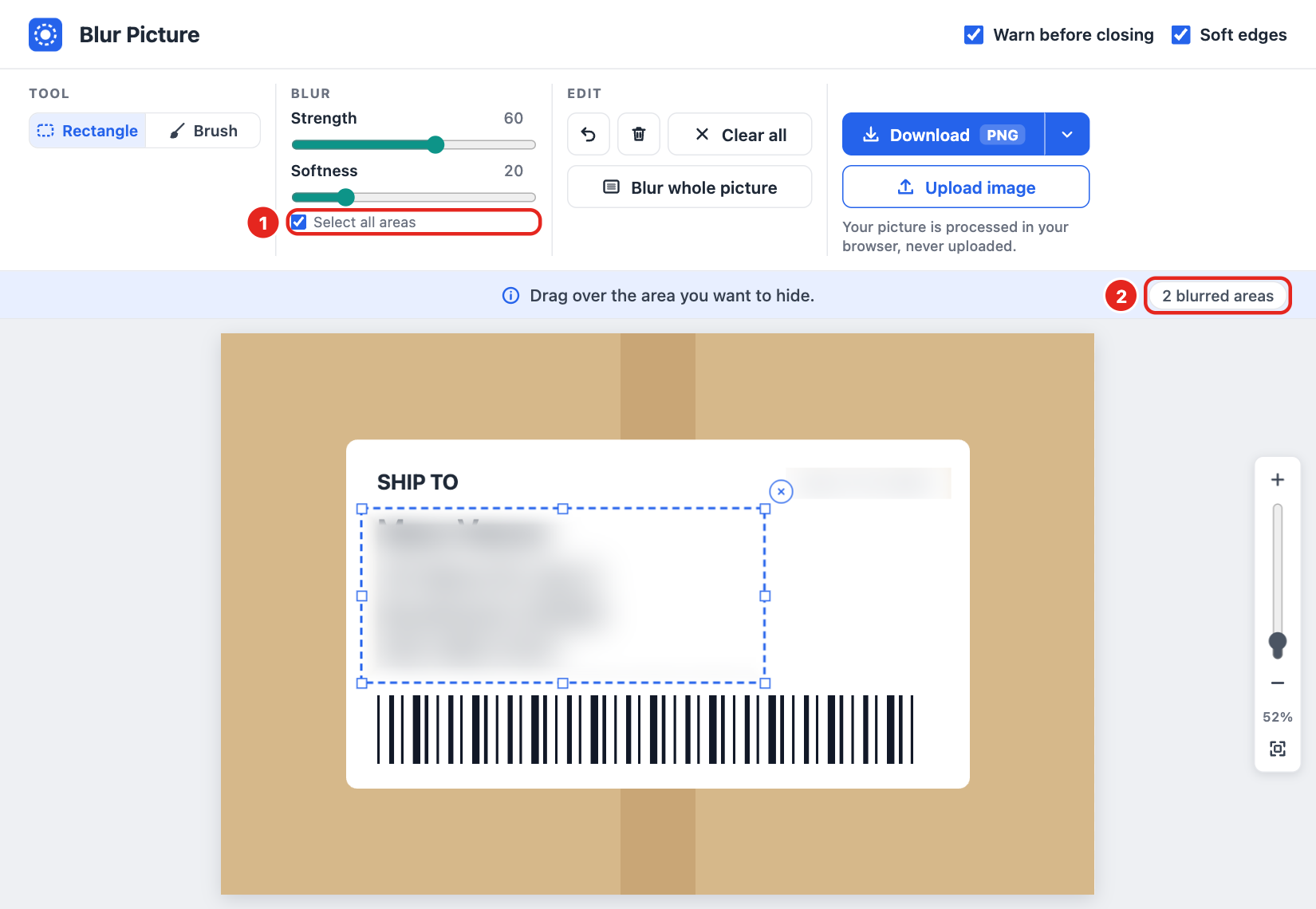
- 1 “Select all areas”
- 2 The area count
Edit and undo
Extension and online editor
Undo a step
Click “Undo” or press Ctrl+Z or Cmd+Z to take back the last step. You can undo steps one by one, even “Clear all”.
Delete an area
Select an area, then click “Delete” or press Delete or Backspace to remove it. The round × button on the selected area also deletes it.
Clear every area
Click “Clear all” to remove every area:
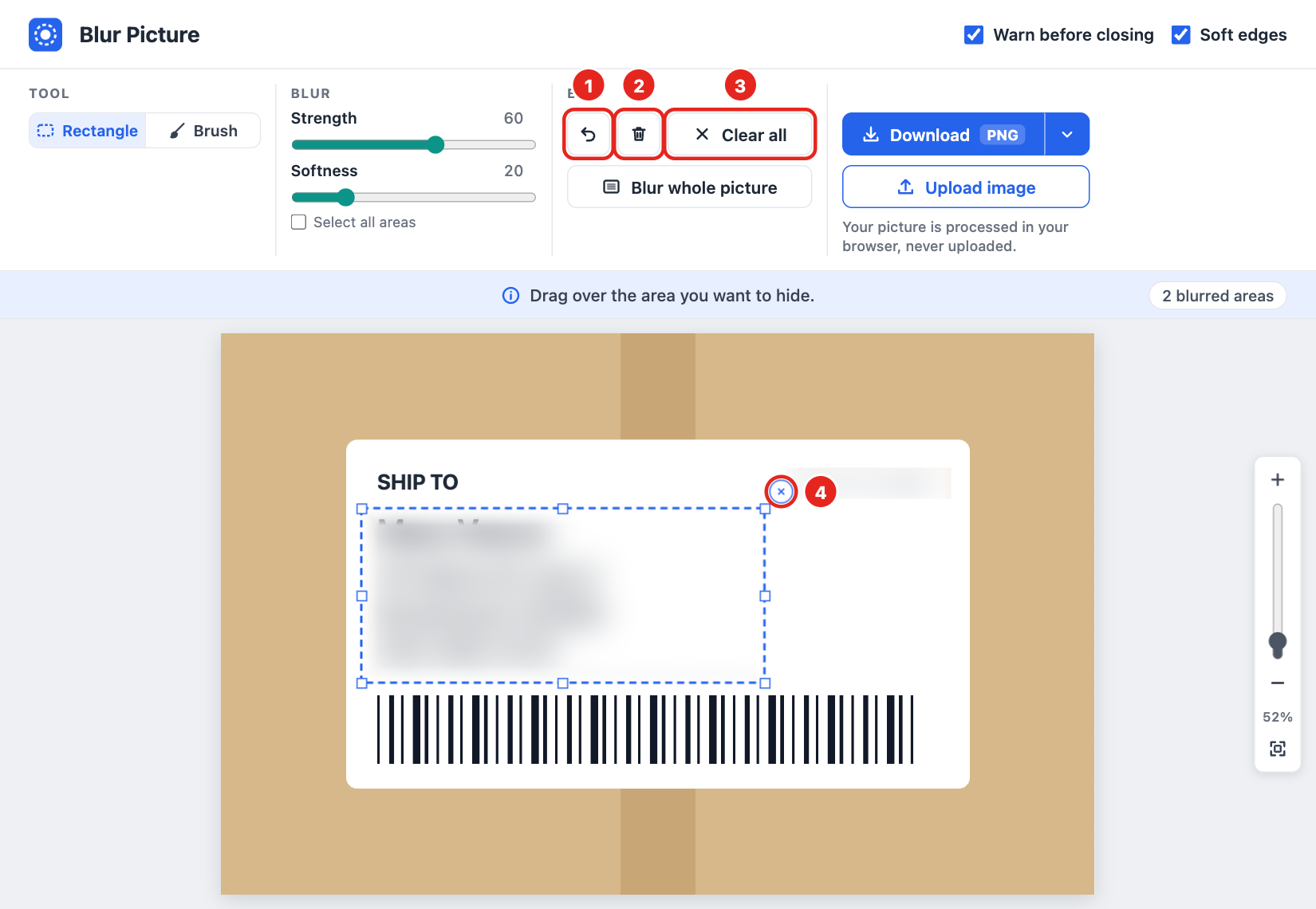
- 1 “Undo”
- 2 “Delete”
- 3 “Clear all”
- 4 The round × button of the selected area
Use Esc
Press Esc to deselect the area. With “Brush” selected, Esc switches back to “Rectangle”.
Zoom
Extension and online editor In the extension’s editor tab and in the online editor; not in the tools on a web page.
Use the zoom control
The zoom control sits on the right edge, with plus and minus buttons that change zoom in steps of 25% and an upright slider from 25% to 400%. The percentage shows the size compared with the original picture. Click “Fit to window” to show the whole picture again:
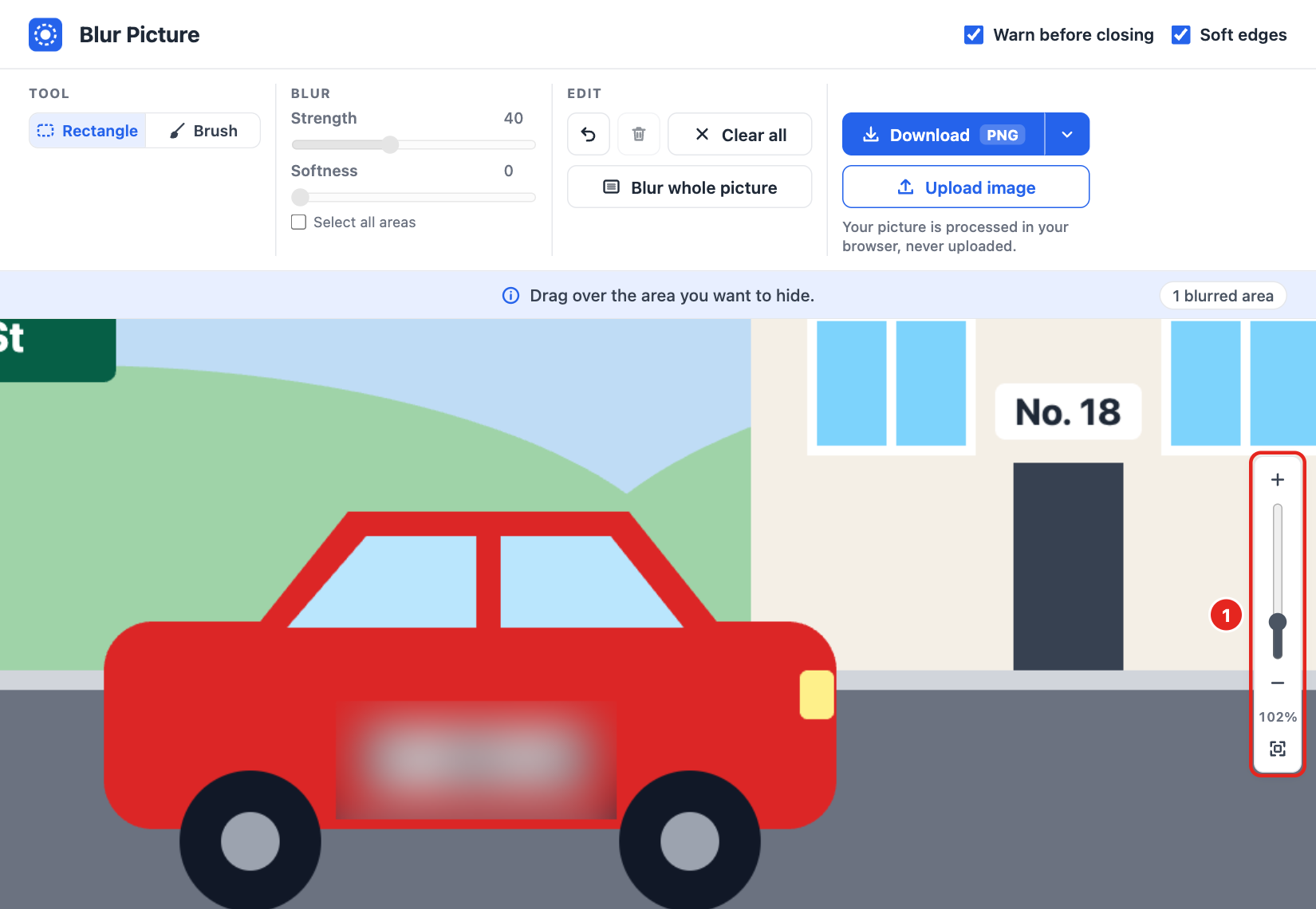
- 1 Plus, slider, minus, percentage and “Fit to window”
Zoom and move the view
Hold Ctrl or Cmd and scroll the mouse wheel to zoom at the pointer. To pan, hold Space and drag, or drag with the middle mouse button.
Download
Extension and online editor
Choose a format
“Download” is grey until something is blurred. It saves the format shown on the button; the arrow next to it offers PNG, JPG and WebP. The editor remembers your choice:
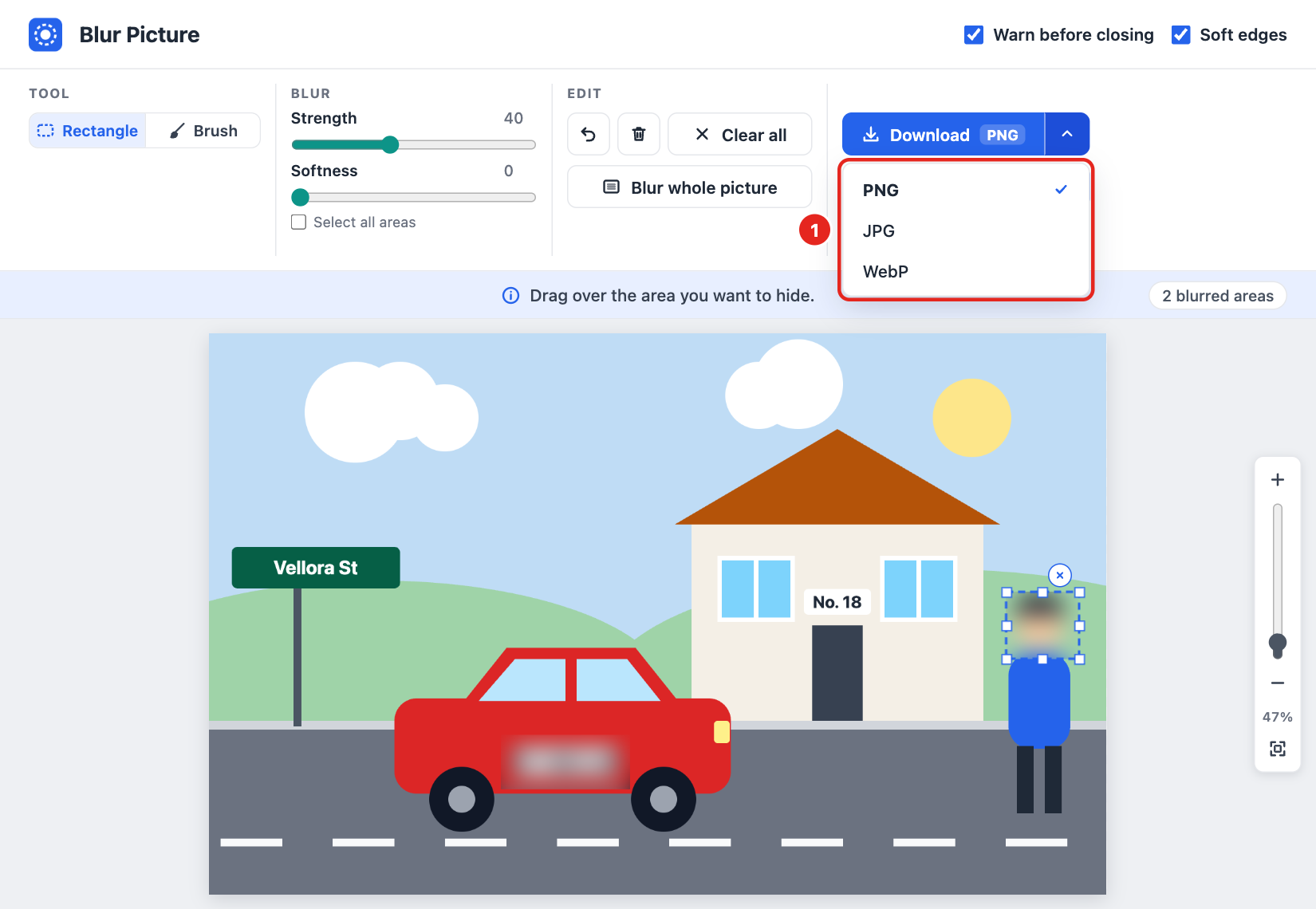
- 1 The format menu
Save your picture
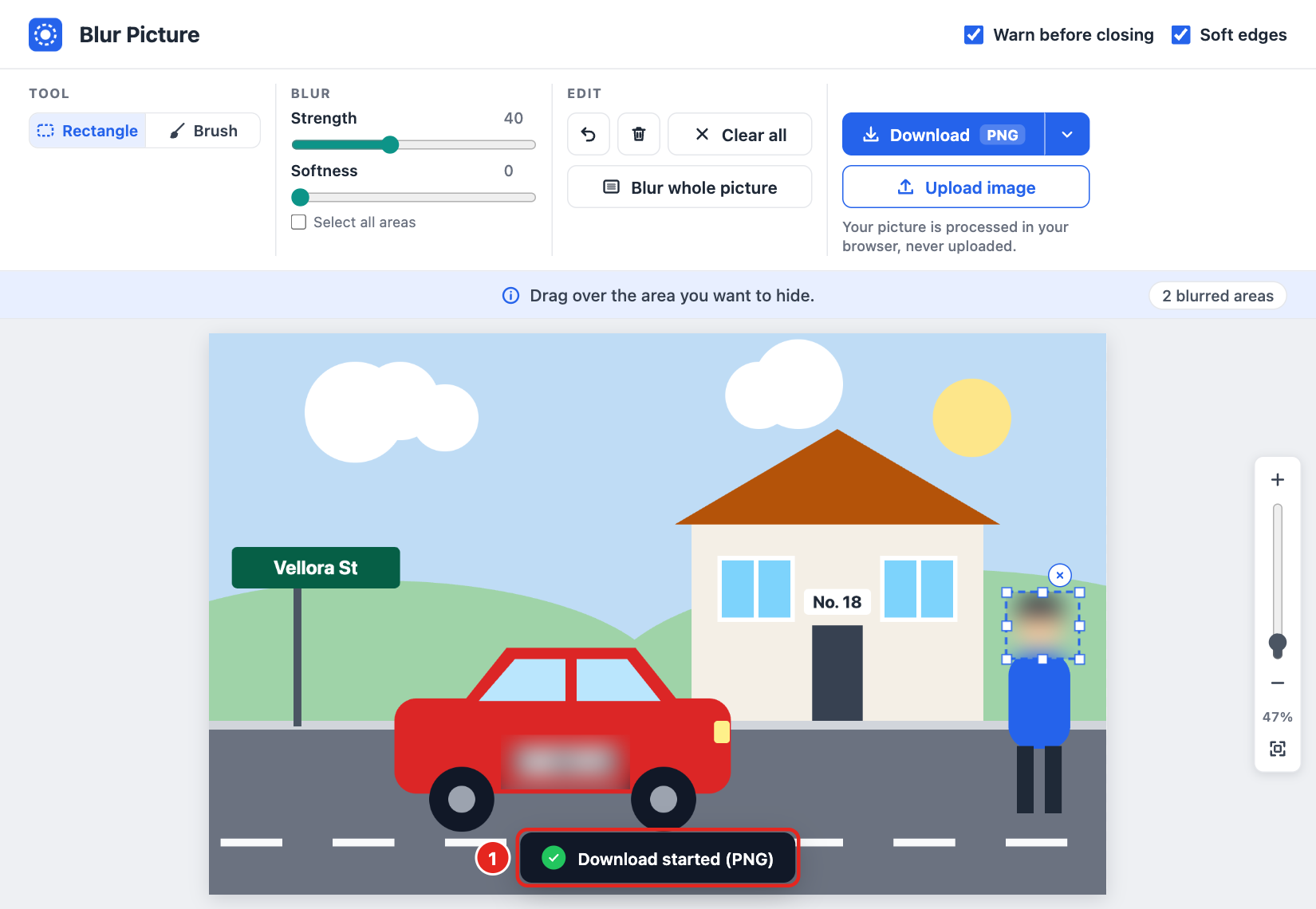
When the download starts, “Download started” appears with the format. The file name has “-blurred” before the extension, for example photo-blurred.png. JPG, PNG and WebP pictures keep their pixel dimensions. The file you opened is not changed:
- 1 “Download started”
Settings
The settings checkboxes are at the top right of the editor:
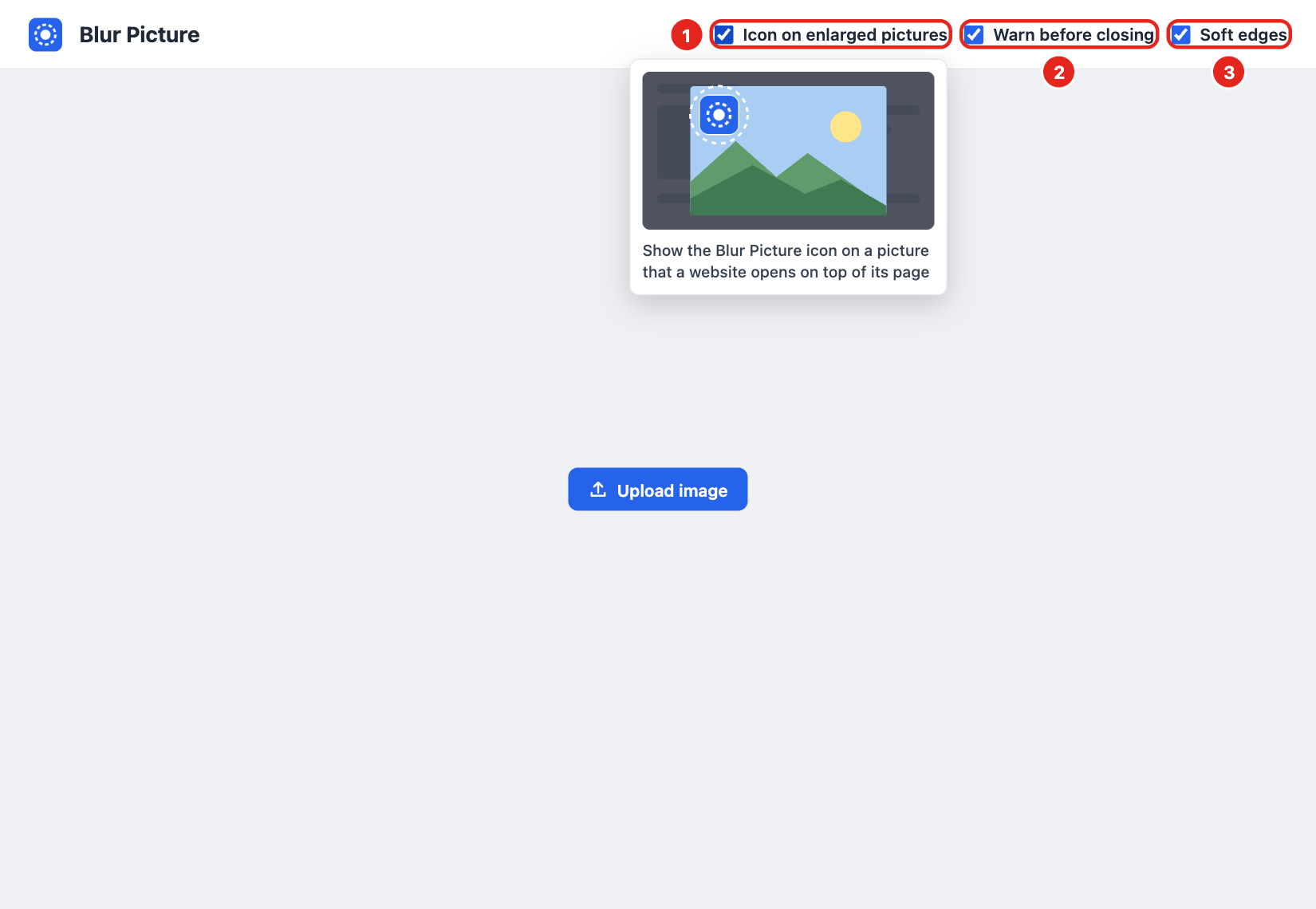
- 1 “Icon on enlarged pictures” (extension only)
- 2 “Warn before closing”
- 3 “Soft edges”
Warn before closing Extension and online editor
“Warn before closing” is on by default. If you have edits you have not downloaded, the extension’s editor tab and the online editor may show a browser warning when you close or leave the page. In the online editor, these checkbox settings apply only to the current visit.
In the on-page tools, clicking the cross shows “Close without downloading? The blurred image will be lost.” with “Keep editing”, “Close anyway” and “Don’t ask again”. Closing the website’s tab does not show this question:
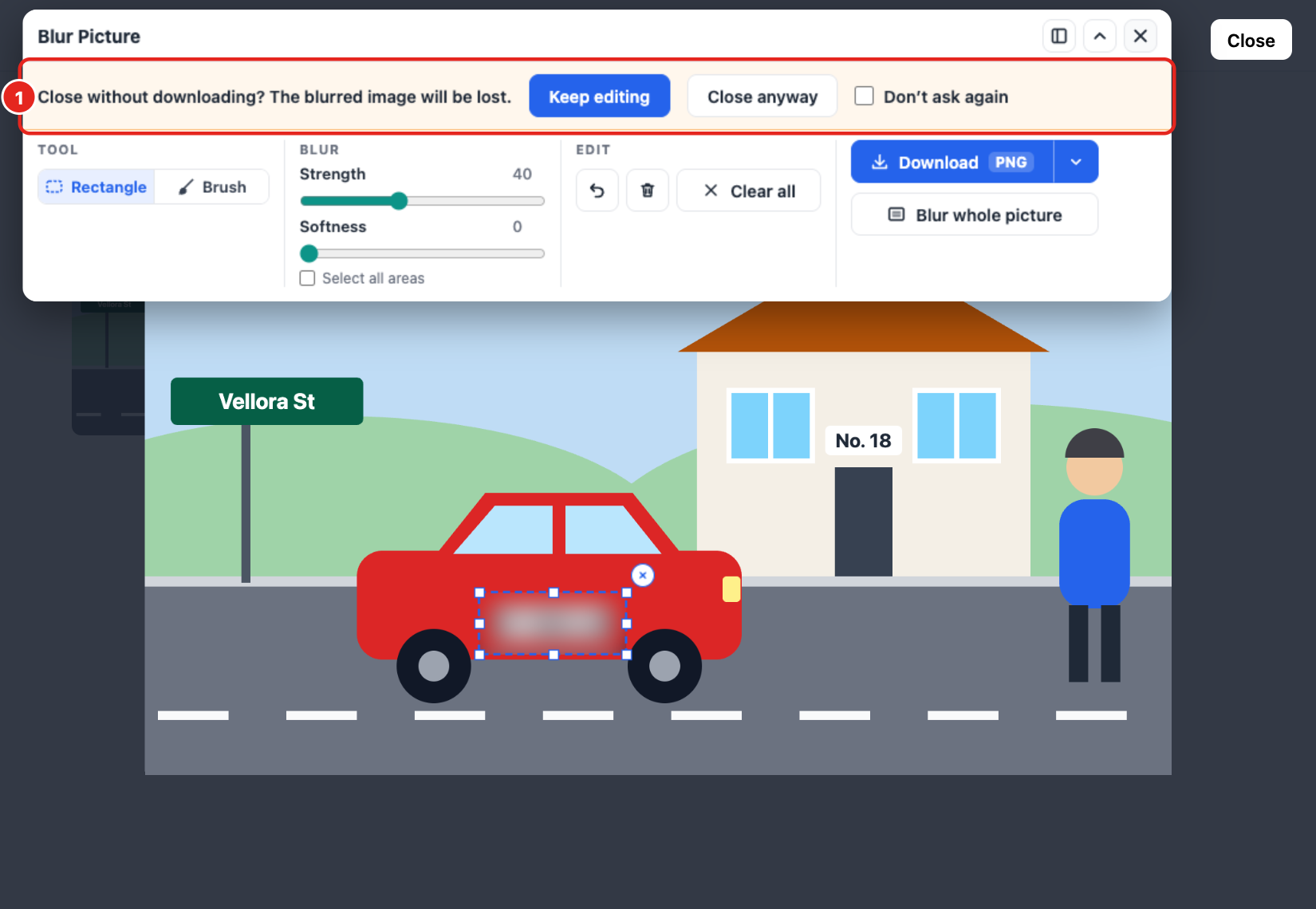
- 1 Confirmation when closing the on-page tools (extension)
Keep edges sharp Extension and online editor
“Soft edges” starts enabled. Uncheck it to remove “Softness” and make all edges sharp.
Hide the picture icon Extension only
Uncheck “Icon on enlarged pictures” in the extension’s editor tab to hide the Blur Picture icon and hint on websites. You can still use the right-click menu.
Keyboard shortcuts
| Keys | What it does |
|---|---|
| Ctrl+V / Cmd+V | Paste a copied picture into the online editor. |
| Ctrl+Z / Cmd+Z | Undo the last step. |
| Delete / Backspace | Remove the selected area. |
| Esc | Deselect the area; with “Brush” selected, switch back to “Rectangle”. |
| Alt + mouse wheel or touchpad scroll | Change the brush size. |
| Ctrl / Cmd + mouse wheel | Zoom at the pointer in the editor tab or online editor. |
| Space + drag, or middle-button drag | Pan the view in the editor tab or online editor. |
Your picture is processed in your browser and is not uploaded. For details, read the Privacy Policy.